Signing In & Licenses
When LutraCAD starts, it connects to a license before opening the workspace. This page explains how to sign in with your account, pick a license, take one over from another computer, and move a license to a different PC.
Signing in with your account
Before any license is selected, LutraCAD asks for your account credentials.
- Enter your E-mail address and Password.
- Click Login.

If the details are not recognised, a wrong-credentials message appears. Check the address and password, then try again.
On the user login screen, a Forgot your password? link appears below the form. Click it to reset your password through the web portal.
Signing in as a user
If your organisation has user accounts enabled (managed under Settings), a user login screen appears during sign-in. LutraCAD supports two modes for this screen.
Simple selection
- Click your name in the user list.
- If a password is set for your user, a password field appears. Enter it.
- Click Login.
Standard
- Type your username.
- If a password is set for your user, enter it in the password field.
- Click Login.
Selecting a license
After signing in, the license selection screen lists every license linked to your account as a tile, grouped under two headings:
- Available licenses: each tile shows the license name and product type.
- Unavailable licenses: each tile shows the license name and product type plus the computer it's currently active on.
Click a tile to connect to that license and open the workspace.
Taking over an in-use license
A license under Unavailable licenses is active on another computer. You can still select it. Doing so takes the license over and automatically disconnects the other computer.
This is the quickest way to move to a different PC when you forgot to release the license first. The old computer is signed out automatically.
Connecting to a server
If this workstation is set up to use a remote LutraCAD server, startup first shows a Connecting with server... screen while it reaches the server. If the server cannot be reached, a message appears with a Retry connect to server button. Click it once the server is available.
This page only covers what you see at startup. To set the connection up, including the server address, port and token, see Connect to a Server.
Moving a license to another PC
Use Disconnect license to release the license cleanly so it can be activated elsewhere.
- On the current computer, open Settings and go to the License tab.
- Click Disconnect license. LutraCAD logs out immediately and returns to the login screen.
- On the other computer, sign in and select the now-free license.
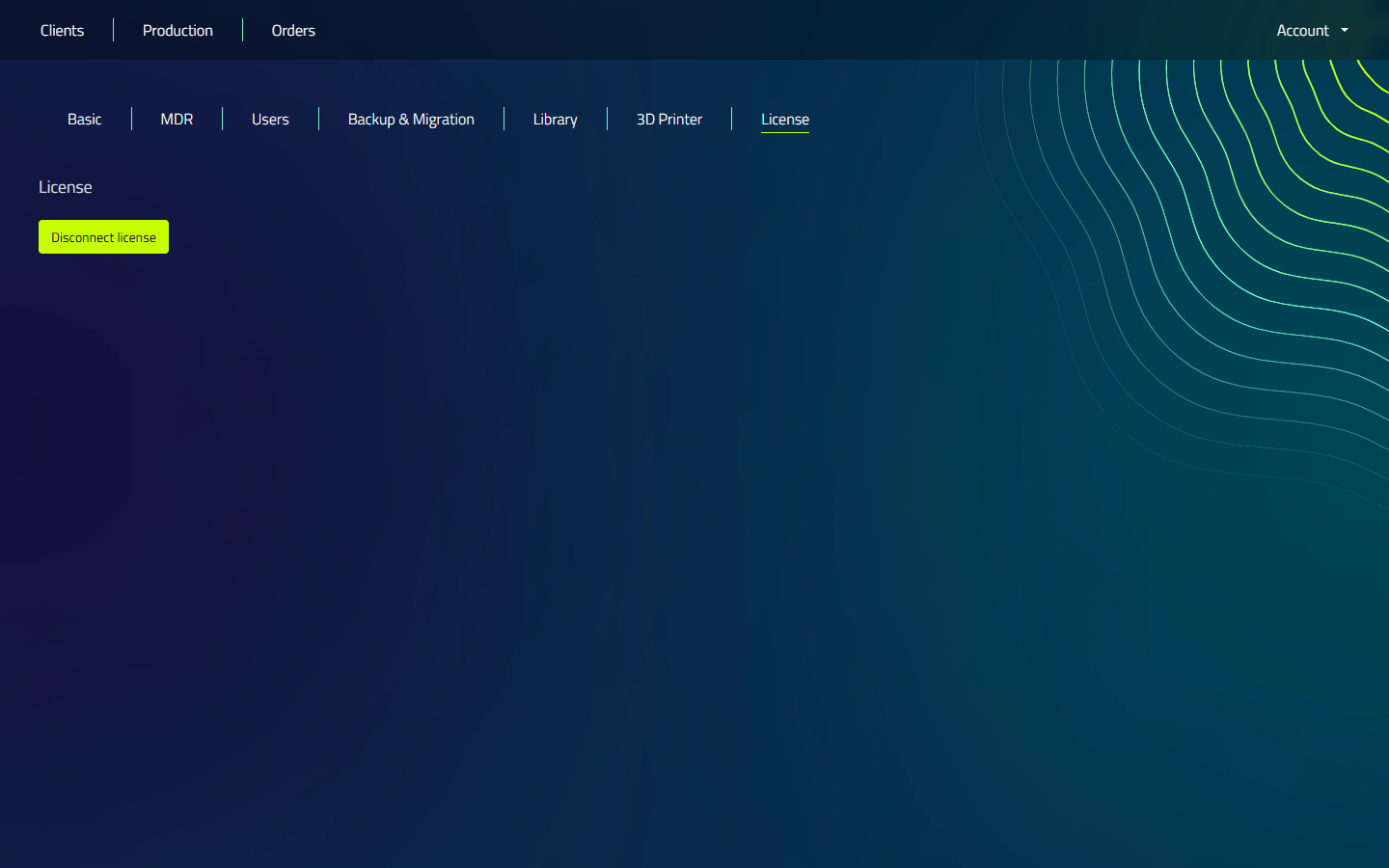
As an alternative, you can skip step 1 and 2 and simply select the In use license directly on the new computer, which takes it over from the old one.
License screen messages
If a license cannot be used, the license screen shows one of the following messages.
| Message | What it means |
|---|---|
| "Unknown combination of email address and password." | The email or password is incorrect. |
| "Your account has not been activated, go to the portal in your browser to confirm your email address." | Confirm your email address through the web portal first. |
| "No licenses are available, go to the portal in your browser to disconnect a license." | All your licenses are in use on other computers. |
| "Your license has expired, log in again to activate another license." | The license has run out. Contact your supplier. |
| "Can't connect, check your internet connection." | LutraCAD cannot reach the licensing service. Check your network. |
| "Your account has been paused, you cannot log in or export. Please contact the vendor for more information." | Your account is on hold. Contact your supplier. |
| "You do not have a license for the current version, please contact supplier and we will be happy to take a look." | This license does not cover the installed version of LutraCAD. |