4. Export
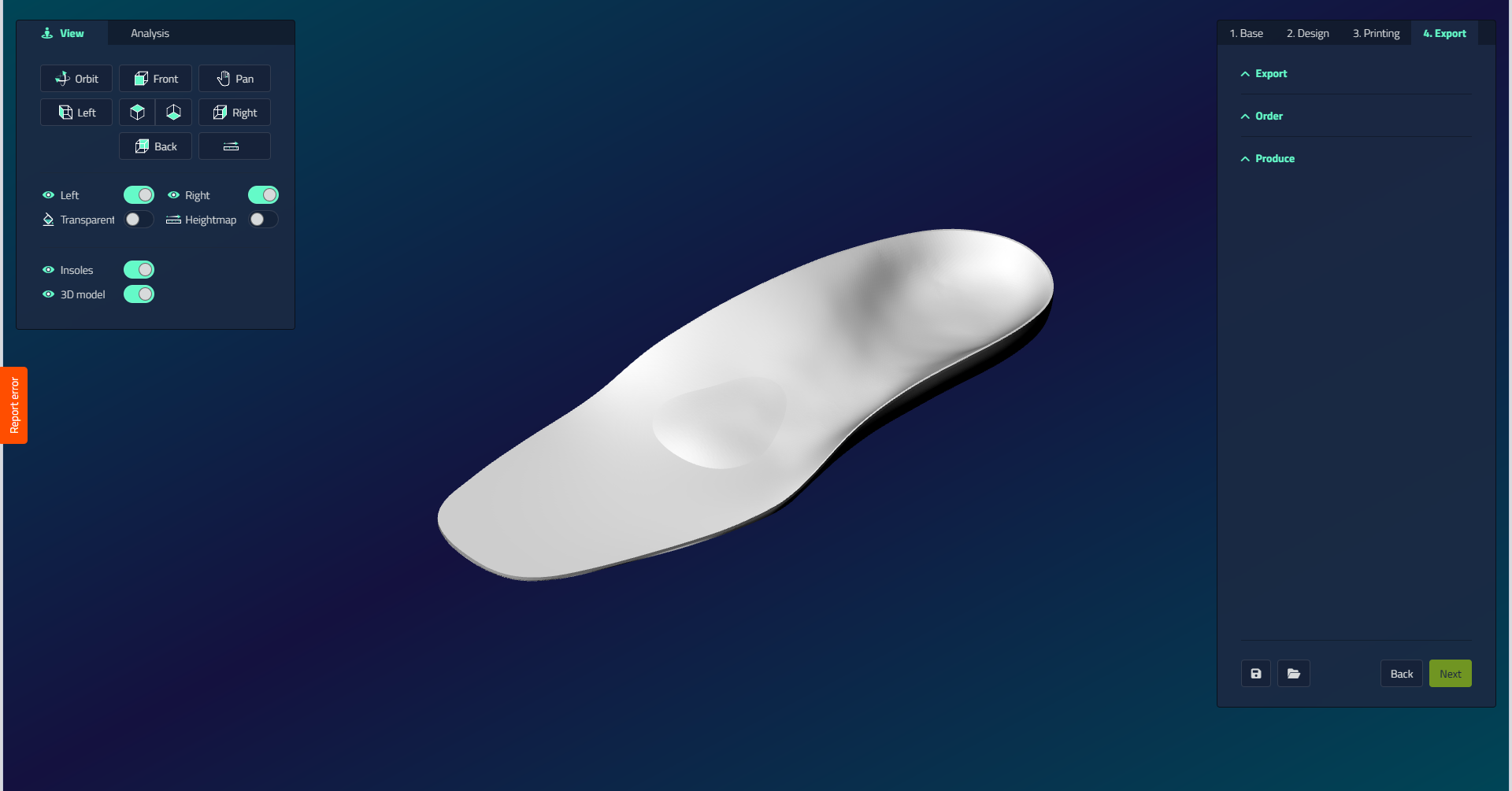
The Export tab provides options for exporting your orthotic designs and sending them to production. It's organized into three main sections: Export, Order, and Produce.
Export
| Control | What it does |
|---|---|
| Export STL | Exports the insoles as separate files in STL format. Deducts one pair of insoles from your account. |
| Export Design | Exports the file in .ldes format, which can be sent to a third party to open, check, modify, and export the design. Does not deduct any insoles from your account. |
Order
Visibility
This section is only visible when your account is configured with at least one outsource partner.
| Control | What it does |
|---|---|
| Save Order | Saves the design in .l3z format as a production item. Unlike the design export, these files cannot be modified. |
| Place Order | Uploads the design to the order/outsource platform of your selected outsource partner. |
Ordering does not deduct any insoles from your account.
Produce
| Control | What it does |
|---|---|
| Produce Now | Adds the item to the production queue and immediately opens it as a production item, so in the next step it can be exported. This opens the interface for generating gcode for milling or preparing slicing for 3D printing. |
| Place in Production | Adds the design to the production queue for later processing. Typically used when milling multiple pairs of insoles on a larger table. |
Placing in production does not deduct any insoles from your account.