Projects
Location: Client page → Open
This section covers the management and overview of projects associated with your clients.
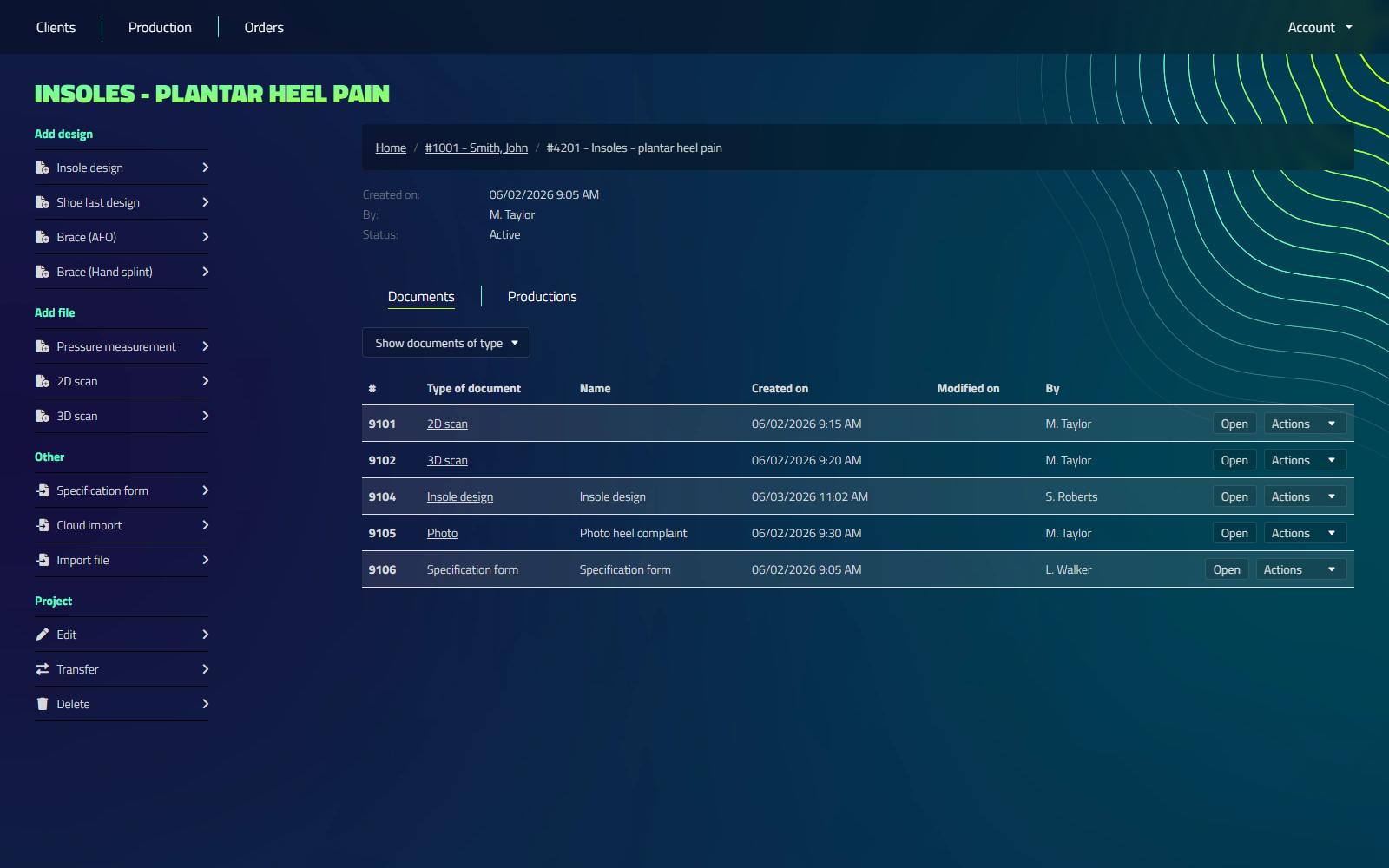
Project Search
You can easily locate specific projects using the search functionality.
Search for projects by:
- Project name
Project Management
You have full control over your projects with the following actions:
- Creating new projects
- Updating existing project information
- Deleting projects
Project Status
Each project is assigned a status that reflects its current stage in the design and production process:
- Unknown: The project has no status set yet
- Active: Projects that are currently being worked on
- In production: Projects that have moved into the production phase
- Ordered: Projects that have an order placed
- Archived: Completed projects that require no further action
Project status helps you track the progress of your designs and manage your workflow efficiently.
Creating a New Project
To create a new project:
- Navigate to the correct Client
- Click on "Add project"
- Type a project name (the current year is pre-filled)
- Click on "Create project"
Transfer Projects
To transfer a project from client A to client B:
- Locate the project using the search function if necessary
- Click on the project to open its details
- Click on "Transfer"
- Search for the new client and select from the list
- Click on "Transfer" to confirm
Updating Projects
To update a project:
- Locate the project using the search function if necessary
- Click on the project to open its details
- Click on "Edit"
- Edit the relevant information
- Save your changes
Deleting Projects
Deleting a project is permanent. Make sure you have a backup or are certain you want to remove the project before proceeding.
To delete a project:
- Find the project you wish to delete
- Click on the "Delete" button on the left hand side
- Confirm the deletion when prompted
Project-Client Relationship
Projects are always associated with a specific client. When viewing a client's details, you see all projects linked to that client for easy reference.